Configuring Network Sensor DHCP Service
The Genian NAC Network Sensor provides DHCP (Dynamic Host Configuration Protocol) service functionality, allowing automatic IP assignment to the managed network range.
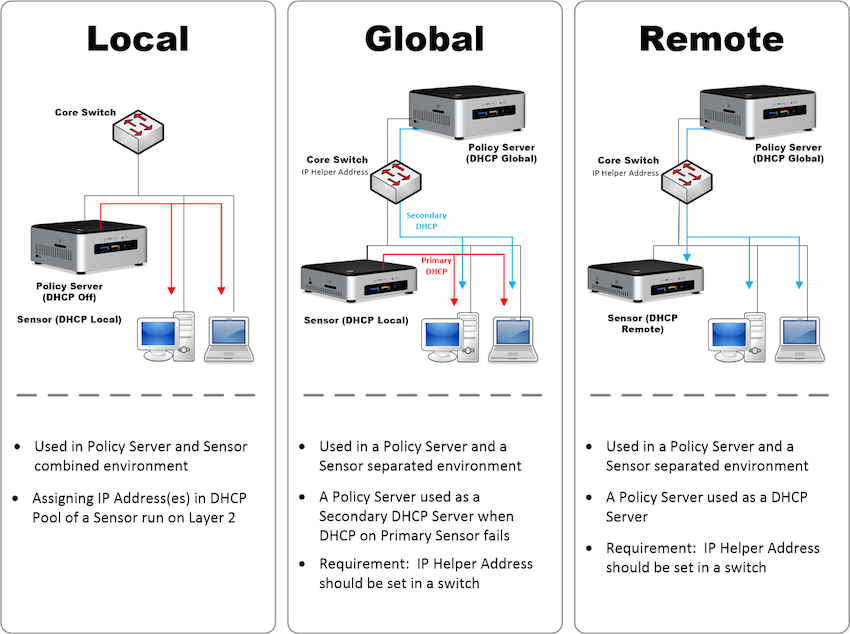
The items providing DHCP service are as follows, used selectively depending on the network environment:
| Configuration Item | Function Description | Notes |
|---|---|---|
| Local | Provides DHCP service for the Network Sensor's managed range | |
| Remote | Network Sensor does not provide DHCP service; DHCP service is provided by a remote server | Requires DHCP Helper Address setting on the switch |
| Local and Remote | Provides DHCP service for the Network Sensor's managed range and IP range of remotely configured Network Sensors |
Switches with DHCP Snooping or DAI
When the Network Sensor or Policy Server provides DHCP service (Local or Local and Remote) and the switch the sensor connects to uses the following security features, configure the port connected to the sensor as a trusted port.
| Switch Feature | If the Sensor Port Is Not Trusted |
|---|---|
| DHCP Snooping | The switch drops DHCP server replies (OFFER, ACK) that arrive on untrusted ports, so endpoints cannot obtain an IP address. |
| DAI (Dynamic ARP Inspection) | The switch drops ARP packets that do not match the DHCP Snooping bindings. DHCP replies are not affected, but the sensor's ARP packets are dropped, so ARP Enforcement may not work. |
The following example configures the port connected to the sensor (Gi1/0/1) as a trusted port on a Cisco switch.
Switch> enable
Switch# configure terminal
Switch(config)# interface gi1/0/1
Switch(config-if)# ip dhcp snooping trust
Switch(config-if)# ip arp inspection trust
Switches from other vendors provide an equivalent trusted port setting. Commands differ by vendor and software version, so refer to the vendor's documentation.
Note
Apply the trusted port setting only to the port connected to the sensor. If you trust a port connected to endpoints, the switch no longer protects that port against rogue DHCP servers and ARP spoofing.
Configuring Network Sensor Local DHCP Service
- Go to System in the top panel.
- In the left System menu, select Sensor Management.
- Check the checkbox for the Network Sensor to configure.
- In the Select Tasks menu, click Bulk Sensor Settings.
- Perform DHCP-related settings:
- Change DHCP Service setting to ON.
- Set Service Target setting to Local.
- Enter Node IP Pool setting.
- Enter DNS Server setting.
- Click the
Savebutton.
Configuring Network Sensor Remote DHCP Service
Remote DHCP service does not provide DHCP on its own, so a Policy Server configured for Local and Remote is required.
- Go to System in the top panel.
- In the left System menu, select Sensor Management.
- Check the checkbox for the Network Sensor to configure.
- In the Select Tasks menu, click Bulk Sensor Settings.
- Perform DHCP-related settings:
- Change DHCP Service setting to ON.
- Set Service Target setting to Remote.
- Click the
Savebutton.
Configuring Policy Server Local and Remote DHCP Service
When configuring Local and Remote DHCP service, the IP range of the remotely configured Network Sensor range must be entered into the Node IP Pool.
- Go to System in the top panel.
- In the left System menu, select Sensor Management.
- Check the checkbox for the Network Sensor to configure.
- In the Select Tasks menu, click Bulk Sensor Settings.
- Perform DHCP-related settings:
- Change DHCP Service setting to ON.
- Set Service Target setting to Local.
- Enter Node IP Pool setting (Remotely configured Network Sensor range setting is required).
- Enter DNS Server setting.
- Click the
Savebutton.
Providing DHCP Service Only from Policy Server
This section is used in environments where the network is a DHCP environment, the Policy Server acts as the DHCP server, and Network Sensors operate remotely.
- Go to System in the top menu.
- Select the Policy Server IP and go to the Sensor Settings screen.
- In the DHCP section below, configure as follows:
- DHCP Service: On
- Service Target: Local and Remote
- Node IP Pool: Entire Client IP range
- Other options also configured according to environment
- Go to System Initial Settings > Sensor Settings in the left System Management menu.
- In the Sensor Settings window, configure as follows:
DHCP Service: On
Service Target: Remote
- Remote: The current sensor does not provide DHCP server functionality; another server provides DHCP service.
- All other Other Settings are Optional.
- Click
Update.
DHCP IP Assignment Prohibition Settings
You can set targets for DHCP IP assignment prohibition.
- Go to System in the top panel.
- In the left System menu, select Sensor Management.
- Check the checkbox for the Network Sensor to configure.
- In the Select Tasks menu, click Bulk Sensor Settings.
- Perform DHCP-related settings:
- Select IP Assignment Prohibition Targets.
- Non-Changeable Violation Nodes
- Non-Changeable Unconfigured Nodes
- MAC Blocked Nodes
When MAC Blocked Nodes is set, unregistered MACs operate based on the Network Sensor's new node policy.
If the new node policy is MAC blocking, IP assignment is restricted, and the node is registered without IP information to allow MAC policy configuration.