How To Contribute Documents using Eclipse
You may contribute to these documents through the following process.
Preparation
GitHub Account
Signup at GitHub
Fork Main Repository
Click Fork Icon top right
Your forked repo https://github.com/USERNAME/genian-nac-admin-guide
Make local repository on your PC
If you use Windows, you need to install the git
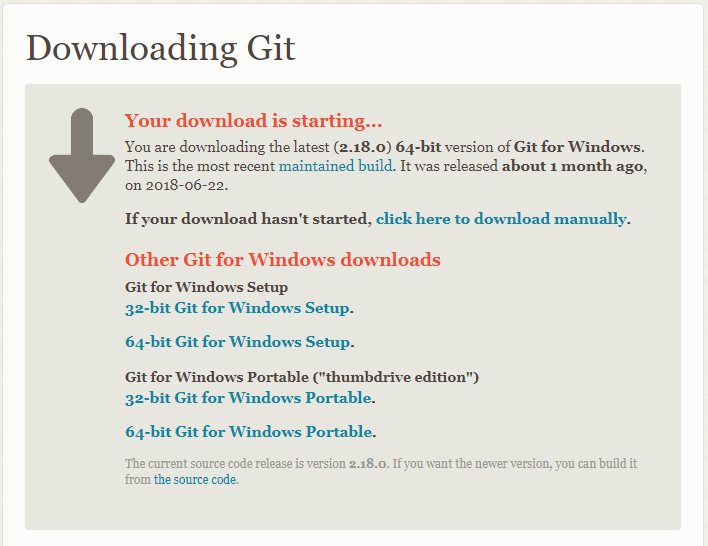
Open Command Prompt enter following:
# git clone https://github.com/USERNAME/genian-nac-admin-guide
# git remote add upstream https://github.com/USERNAME/genian-nac-admin-guide
Install Sphinx on your PC
If you use Windows you need to install Python
Go to Python to download
Open Command Prompt enter following:
# pip install Sphinx
# pip install sphinx_rtd_theme
Install Eclipse
Go to Eclipse to download
Install additional package on Eclipse
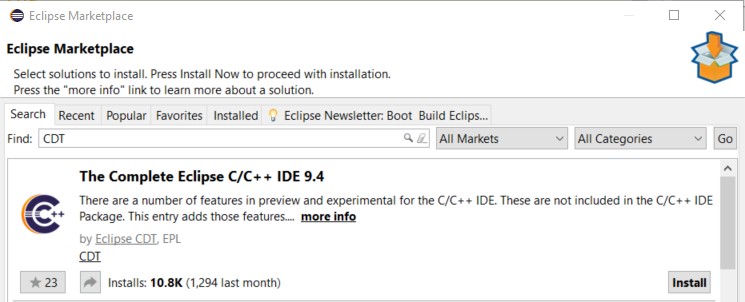
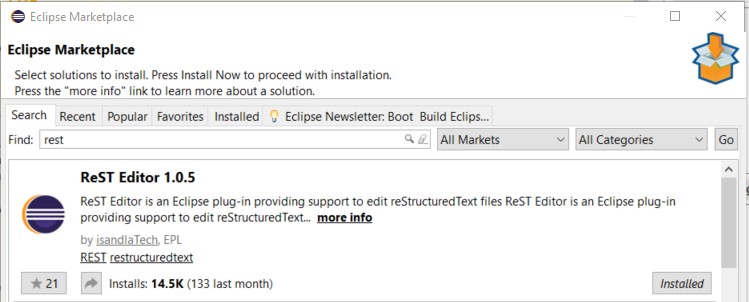
Go to Help > Eclipse Marketplace
Search ‘CDT’ and click “install” on “The Complete Eclipse C/C++ IDE”
Search ‘rest’ and click “install” on ReST Editor”
Import Project
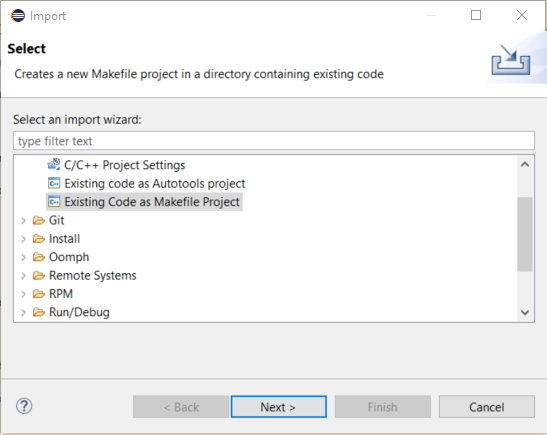
Select File > Import
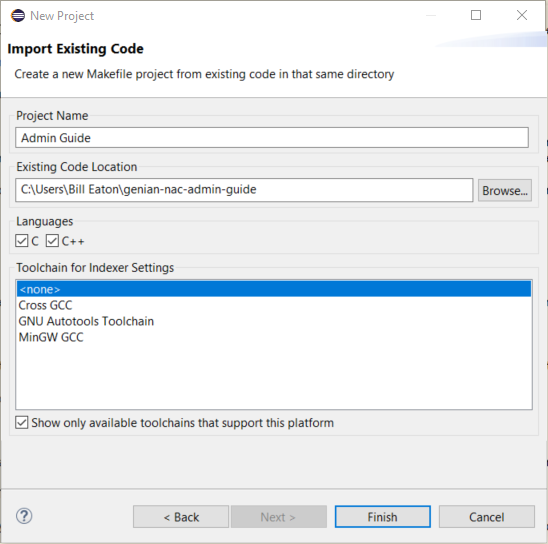
Select Existing Code as Makefile Project under C/C++
Click “Next”
Project Name is “Admin Guide”
Select your source directory “genian-nac-admin-guide”
Click “Finish”
Change project settings
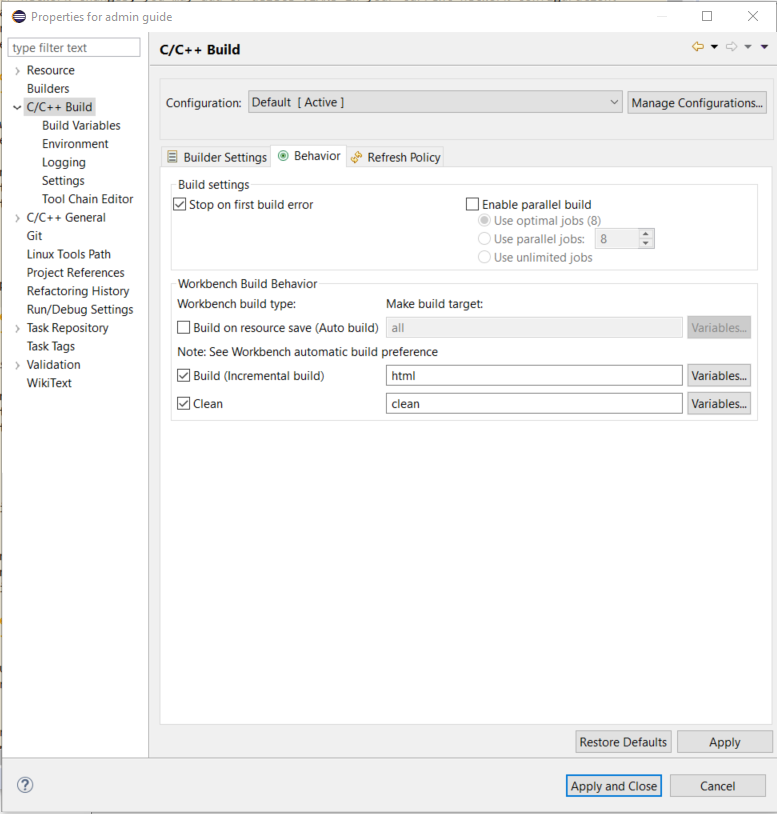
Select Project > Properties
Select “C/C++ Build” on left menu
Select “Behavior” Tab
Change value of Build “all” -> “html”
Click “Apply and Close”
Editing contents using Eclipse
Create New Folder for Files
Right Click on >source > New > Folder
Folder Name should be one word in lowercase that best describes section
Create New File within Folder
Right click on desired folder > New > File
Filename should be lowercase, and a hyphen between words. .rst must follow the name. (e.g. some-name.rst)
Sample Page Formatting
(Header) <Some Title>
=====================
<Space Needed>
(Intro) <Some Intro>
<Space Needed>
(Sub-Title) <To Do Something>
-----------------------------
<Space Needed>
#. <Go to somewhere and do something>
#. <Next Step>
<Space Needed>
   -  <Sub-step>
   -  <Sub-step>
   -  <Sub-step>
   -  <Sub-step>
<Space Needed>
#. <Next Step>
Add Images
Copy image files from local machine to Eclipse images folder
Add code for images where you would like your image to be
.. image:: /images/some-image.PNG
   :width: 500px
Add Table
+-----------+-----------+-----------+
|1st Column |2nd Column |3rd Column | <-----Title Block
+===========+===========+===========+
|           |           |           |  <-----First Data Block
+-----------+-----------+-----------+
Add CLI Coding Box
.. code:: bash
<Space Needed>
 Lines of Code with no spaces to follow (*Single space before "Lines" needed)
Add Links
`Some Title For Link`_
(*At bottom of page)
.. _Some Title For Link: URL
Compile Document
Press Ctrl-B within the editor and see changes and errors in Console on right
Generated HTML will be placed under genian-nac-admin-guide/build/html directory
Open index.html page to review and verify changes
(e.g. file:///C:/Users/Bill%20Eaton/genian-nac-admin-guide/build/html/index.html)
If you change any doctree:: or add new pages, it will require to clean build
Select Project > Clean
Press Ctrl-B
Apply your change to main repository
Commit and Push to your repo
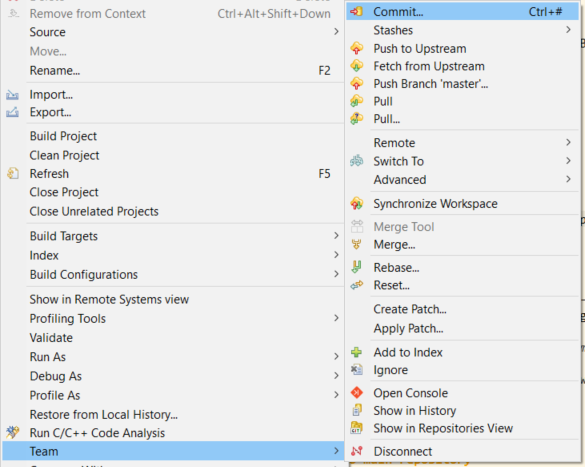
Right click on Top of Project Explorer
Select Team > Commit
Make sure your change file on Staged Changes
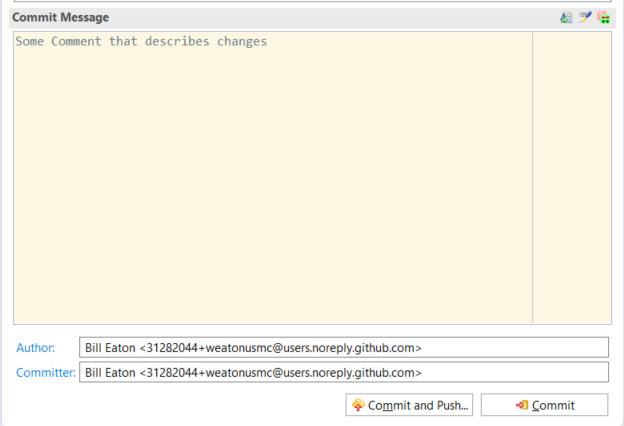
Add a “Commit Message”
Click “Commit and Push” button
Stay current with Main Repo changes
Update main repo changes to your local repo
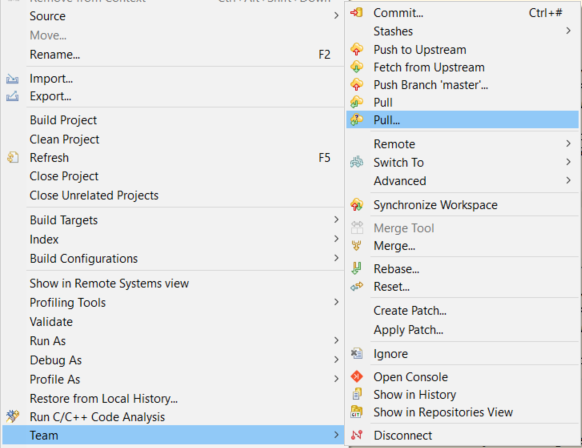
Right click on Top of Project Explorer
Select Team > Pull (second one)
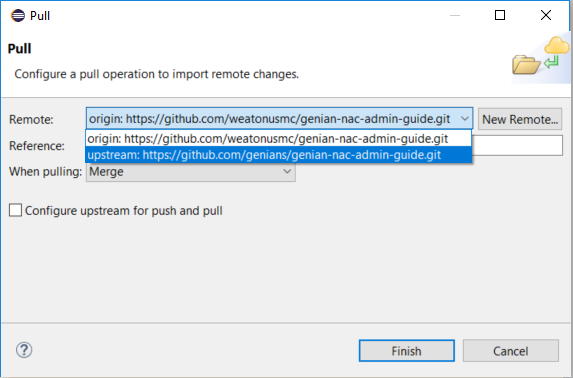
Change Remote from “origin” to “upstream”
Click “Finish”
Make Pull Request
Visit your repo on GitHub (https://github.com/USERNAME/genian-nac-admin-guide)
Click “New Pull request”
(Main repository moderator will approve changes, or ask you to make some suggested changes)
Clone other Repositories for testing
Go to Master Branch
Click on Pull Requests to view all requests
Find and click on Pull Request you want to clone and test
Find and click on "command line instructions"
Copy the https://...... line from Step 1.
Open Command Prompt or Terminal
Type "git clone (Paste line that was copied) <SomeTestName>
git clone https://github.com/billeaton-master/genian-nac-admin-guide.git doc-test


Cloning into 'doc-test'...
remote: Counting objects: 2666, done.
remote: Total 2666 (delta 0), reused 0 (delta 0), pack-reused 2666
Receiving objects: 100% (2666/2666), 3.73 MiB | 6.04 MiB/s, done.
Resolving deltas: 100% (1728/1728), done.
Change directories to doc-test. > cd doc-test
Import Cloned Repository into Eclipse
Open Eclipse and right click onto File and Open Projects from File System
Find Import source and locate doc-test directory and click Finish to open it
You will now see the doc-test project under your current project to test and make changes
Once you are complete delete this project by right clicking on project and selecting Delete
Click Checkbox to Delete project contents on disk (cannot be undone) then click OK