This document provides a configuration guide for integrating JIRA Assets, used for IT Asset Management (ITAM) purposes, with Genian ZTNA, a network access control system.
JIRA Assets automatically collects network node information detected by Genian ZTNA and registers it in the asset database (CMDB). This enables real-time visibility and unified management of IT assets.
Using Genian ZTNA's Workflow feature, assets can be automatically registered or updated in JIRA Assets when nodes are detected.
Integration between Genian ZTNA and JIRA Assets provides the following benefits:
Real-time Asset Visibility
By automatically detecting all devices connected to the network and registering them in JIRA Assets, you can gain real-time visibility of IT asset status without manual entry.
Efficient Asset Management
By linking Genian ZTNA's node information (IP, MAC, OS, user, etc.) with JIRA Assets, asset managers can manage assets from a unified perspective and automatically track asset change history.
Enhanced IT Service Management
Integration with JIRA Service Management enables instant access to asset information when incident tickets are created, facilitating rapid problem resolution.
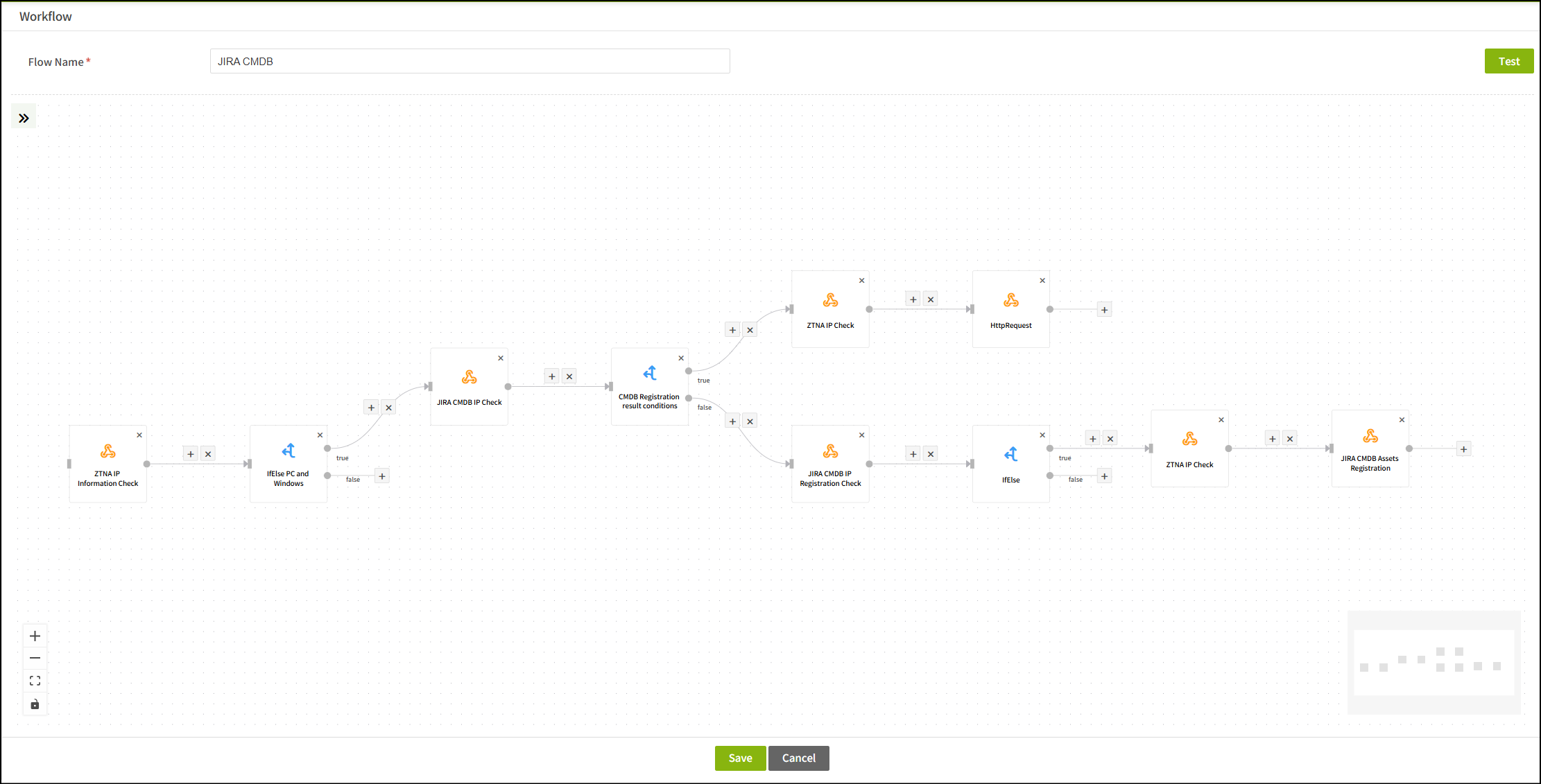
Upper Path (Windows PC): Retrieve ZTNA IP Info → Check condition PC and Windows → Query JIRA CMDB IP address → CMDB registration result condition → Retrieve ZTNA IP Info → Register JIRA CMDB asset
Lower Path (Server): Retrieve ZTNA IP Info → Check condition Server and Red Hat → Query JIRA CMDB IP address registration → Query result condition → Retrieve ZTNA IP Info → Register JIRA CMDB asset
Key Decision Points:
Check condition PC and Windows: Verify NodeType=20 (True → Windows PC path, False → Server path)
Check condition Server and Red Hat: Verify NodeType=40 AND NL_PLATFORM="Red Hat Linux"
Registration result condition: Verify total=0 (Register only unregistered assets)
Create Asset Registration Workflow
Click 'Workflow' from the top menu to navigate to the Workflow Console, then click 'Select Task' and select 'Create' to enter the following:
Setting Item
Setting Value
Notes
Workflow Name
JIRA CMDB Integration
Description
Automatically register network nodes to JIRA Assets
Trigger
Event Hooks
Execute when external event is received
Note
The example in this document uses Event Hooks as the trigger.
Event Hooks call the Workflow when specific events (node detection, IP change, etc.) occur through Genian ZTNA's log filter feature.
Trigger types can be set variously such as "Node Detected", "Schedule", "Manual Execution", etc.
objectTypeId "13" is the Server Object Type in JIRA Assets.
Attribute ID 100: Name (service name)
Attribute ID 157: IP Address
Attribute ID 115: Platform (platform information)
p4c5 is the process ID of Step 5 (Retrieve ZTNA IP Info).
Use node information retrieved in Step 5 to create the asset.
Workflow Flow Summary
Windows PC Registration Flow:
Retrieve ZTNA IP Info (p4d0): Call Genian ZTNA API to retrieve detailed information of detected node (include ${request._IP} in Body, use accept header)
Check condition PC and Windows: Verify NodeType=20 (PC) → If True, proceed
Query JIRA CMDB IP Address (p10b): Search JIRA Assets for assets registered with the IP address using AQL
CMDB Registration Result Condition: Verify total=0 → If True (unregistered), proceed
Retrieve ZTNA IP Info (pe65): Retrieve latest node information again (include ${request._IP} in Body, use accept header)
Register JIRA CMDB Asset: Register asset as Object Type 51 (Windows PC) (NL_FQDN, NL_IPSTR, NL_PLATFORM)
Server Registration Flow:
Retrieve ZTNA IP Info (p4d0): Call Genian ZTNA API to retrieve detailed information of detected node (include ${request._IP} in Body, use accept header)
Check condition PC and Windows: Verify NodeType=20 (PC) → If False, proceed to next step
Check condition Server and Red Hat (p7cb): Verify NL_PLATFORM="Red Hat Linux" AND NodeType=40 (Server) → If True, proceed
Query JIRA CMDB IP Address Registration (pe9a): Search JIRA Assets for assets registered with the IP address using AQL
Query Result Condition: Verify total=0 → If True (unregistered), proceed
Retrieve ZTNA IP Info (p4c5): Retrieve latest node information again (include ${request._IP} in Body, use accept header)
Register JIRA CMDB Asset: Register asset as Object Type 13 (Server) (NL_SERVICE, NL_IPSTR, NL_PLATFORM)
Tip
In actual production environments, you can add conditional branches for various OS types such as Mac OS, Windows Server, etc.
You can expand by adding separate IfElse nodes and HTTP Request nodes for each OS type.
Both Windows PC and Server processes use ${request._IP} and authenticate with accept header in the same way.
Refer to the actual values shown in parentheses for process IDs.
Template Variable Reference Method
Main template variables used in Workflow:
Windows PC Registration Process:
${request._IP}: IP address passed from Event Hooks trigger
${[p4d0.result[0].NodeType]}: Step 1 Retrieve ZTNA IP Info - Node type code
${[p4d0.result[0].NL_IPSTR]}: Step 1 Retrieve ZTNA IP Info - IP address
${[p10b.total]}: Step 3 Query JIRA CMDB IP Address - Number of assets found
${[pe65.result[0].NL_FQDN]}: Step 5 Retrieve ZTNA IP Info - FQDN/hostname
${[pe65.result[0].NL_IPSTR]}: Step 5 Retrieve ZTNA IP Info - IP address
${[pe65.result[0].NL_PLATFORM]}: Step 5 Retrieve ZTNA IP Info - Platform information
Server Registration Process:
${request._IP}: IP address passed from Event Hooks trigger
${[p4d0.result[0].NodeType]}: Step 1 Retrieve ZTNA IP Info - Node type code
${[p4d0.result[0].NL_PLATFORM]}: Step 1 Retrieve ZTNA IP Info - Platform information
${[p4d0.result[0].NL_IPSTR]}: Step 1 Retrieve ZTNA IP Info - IP address
${[pe9a.total]}: Step 3-1 Query JIRA CMDB IP Address Registration - Number of assets found
${[p4c5.result[0].NL_SERVICE]}: Step 5 Retrieve ZTNA IP Info - Service name
${[p4c5.result[0].NL_IPSTR]}: Step 5 Retrieve ZTNA IP Info - IP address
${[p4c5.result[0].NL_PLATFORM]}: Step 5 Retrieve ZTNA IP Info - Platform information
Common Variables:
${connInfo.request.cloudId}: JIRA Cloud ID stored in integration information
${connInfo.request.workspaceId}: JIRA Workspace ID stored in integration information
Note
Process IDs (p4d0, p10b, pe65, p7cb, pe9a, p4c5, etc.) may differ for each Workflow.
If Response Body Template is left blank, the entire response is stored and can be referenced by JSON path in subsequent steps.
Both Windows PC process and Server process use ${request._IP} (including underscore).
All processes perform ZTNA API authentication using accept header and Authorization header.
Scenario 1: Automatic Registration of New Equipment
When a new Windows PC is connected to the network, Genian ZTNA automatically detects it and registers it to the 'Windows' Object Type in JIRA Assets through the Workflow. IT administrators can gain real-time visibility of asset status without manual entry.
Scenario 2: Asset Information Update
When an existing PC's OS is upgraded (e.g., Windows 10 → Windows 11), Genian ZTNA detects the change and automatically updates the 'OS Version' attribute in JIRA Assets.
Scenario 3: Utilize Asset Information When Creating Incident Tickets
When a user creates a PC incident ticket through JIRA Service Management, asset information (OS version, installed software, etc.) can be immediately accessed from JIRA Assets based on the PC's IP address, enabling rapid problem resolution.
Scenario 4: Track Asset Change History
Using JIRA Assets' change history feature, you can track all changes to specific assets chronologically, such as IP address changes, OS upgrades, etc.