Installing Policy Server
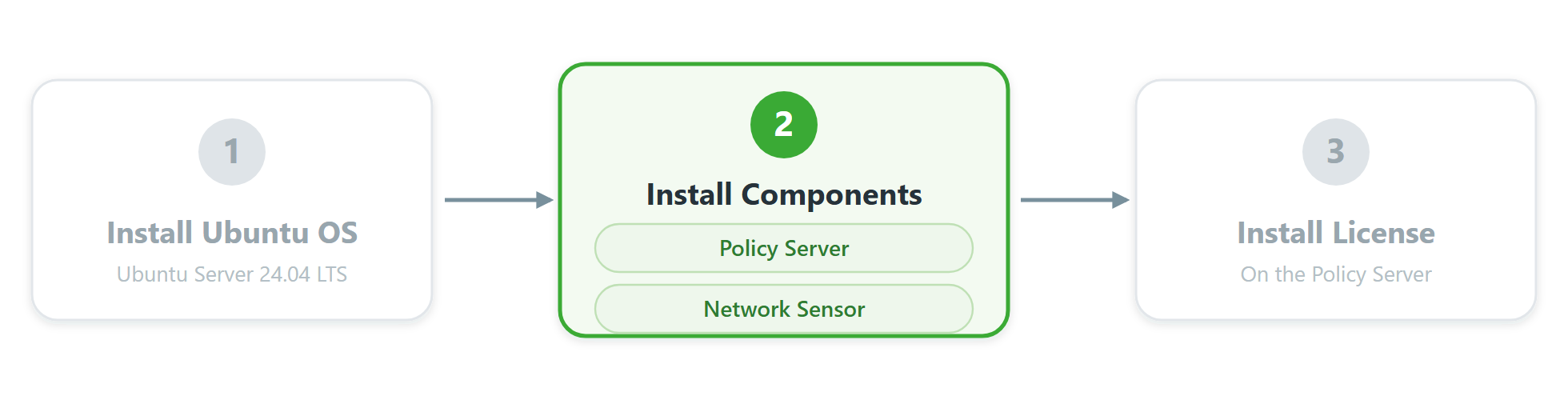
You are here: Step 2 — Install Components.
Deployment Models
You can install the Policy Server in two ways depending on scale and management method.
Type |
Description |
Note |
|---|---|---|
On-premises |
Install the Policy Server inside your network to manage policies and network resources. |
|
Cloud managed |
Deploy a virtual Policy Server in a cloud environment. Administrators manage policies and networks via the cloud console and Web UI. |
Before deploying in the cloud, prepare the cloud environment (VPC, subnets, security groups) per your provider's documentation. |
Prepare the Environment
Note
Prepare Network Connectivity
Note
Install the Policy Server
Step 1: Switch to the root account
genian@genian:~$ sudo su
[sudo] password for genian:
root@genian:/home/genian#
Step 2: Update and upgrade packages
root@genian:/home/genian# apt-get update
root@genian:/home/genian# apt-get upgrade
Step 3: Install curl (required for installation)
root@genian:/home/genian# apt install curl
Step 4: Install Genian NAC 6.0 Policy Center
curl -sSLk https://bit.ly/4fX6bQ8 | sudo PROMPT=0 SSHALLALLOW=1 SSHPORT=22 TARGET=GPC DEB=nac6 LOCALE=en bash -
Configure the Policy Server
Step 1: Access Ubuntu and gnlogin
After installation completes, access Ubuntu and run gnlogin for initial setup.
genian@genian:~$ sudo su
[sudo] password for genian:
root@genian:/home/genian#
# Obtain root privileges
root@genian:/home/genian# gnlogin
# Enter Genian Shell
Note
Step 2: Configure interfaces
Configure the default interface of the device.
Enter global configuration mode with the "enable" command.
Enter configuration mode with the "configure terminal" command.
Set the interface IP address and subnet mask.
Set the interface default gateway.
Set the device default gateway.
Set the device DNS server.
Set the device NTP server.
genian> enable
Password : (contact Technical Support for the enable password)
genian# configure terminal
genian(config)# interface [interface-name] address [IP] [Subnetmask]
genian(config)# interface [interface-name] gateway [IP]
genian(config)# ip default-gateway [IP]
genian(config)# ip name-server [IP]
genian(config)# ntp server [IP]
// If you configured interfaces during Ubuntu installation, some IP-related settings may already be present.
Step 3: Configure the Database server
Set up the Database server.
Set the DB account.
Enable the DB server.
Set the DB access password.
Configure DB access permissions.
genian(config)# data-server username [DB-username]
genian(config)# data-server enable
genian(config)# data-server password [DB-password]
Step 4: Configure the Log Server
Start the Log Server.
genian(config)# log-server version 6
genian(config)# log-server enable
genian(config)# log-server publish-port [interface-name]
Step 5: Configure Web UI and SOAP Server
Enable the Web UI.
Enable the SOAP server.
genian(config)# interface [interface-name] management-server enable
genian(config)# interface [interface-name] node-server enable
Step 6: Create an administrator account
Create the administrator account for the Genian NAC 6.0 Web UI. This can be set only once.
Create the Web UI account.
genian(config)# superadmin [admin-id] [admin-password] [admin-email]
Note
Step 7: Access the Web UI
After completing the steps above, log in to the Genian NAC 6.0 Web UI and verify the installation.
Note
Note
After installation, install your license to enable Visibility and Control features. See Installing License.
Unsupported hardware
If installation does not proceed normally, contact your partner engineer or Technical Support.
Note
If storage devices or network interfaces are not recognized in a virtual environment, change the storage type to SATA or change the network interface driver to an Intel family such as E1000.